> ## Documentation Index
> Fetch the complete documentation index at: https://starlight.mintlify.site/llms.txt
> Use this file to discover all available pages before exploring further.
# Authentication
> Learn how to authenticate your request
The TMDB API supports two types of authentication. **API keys** and a **Bearer token** authentication.
You can only choose one out of the two.
## How to Use API Key
To use an API key to authenticate your request, you need to get your API keys. Follow these steps to get your API keys.
Navigate to your [dashboard](https://www.themoviedb.org/settings/api).
Scroll through the ‘Settings’ section at the left side of the page and click ‘API’.
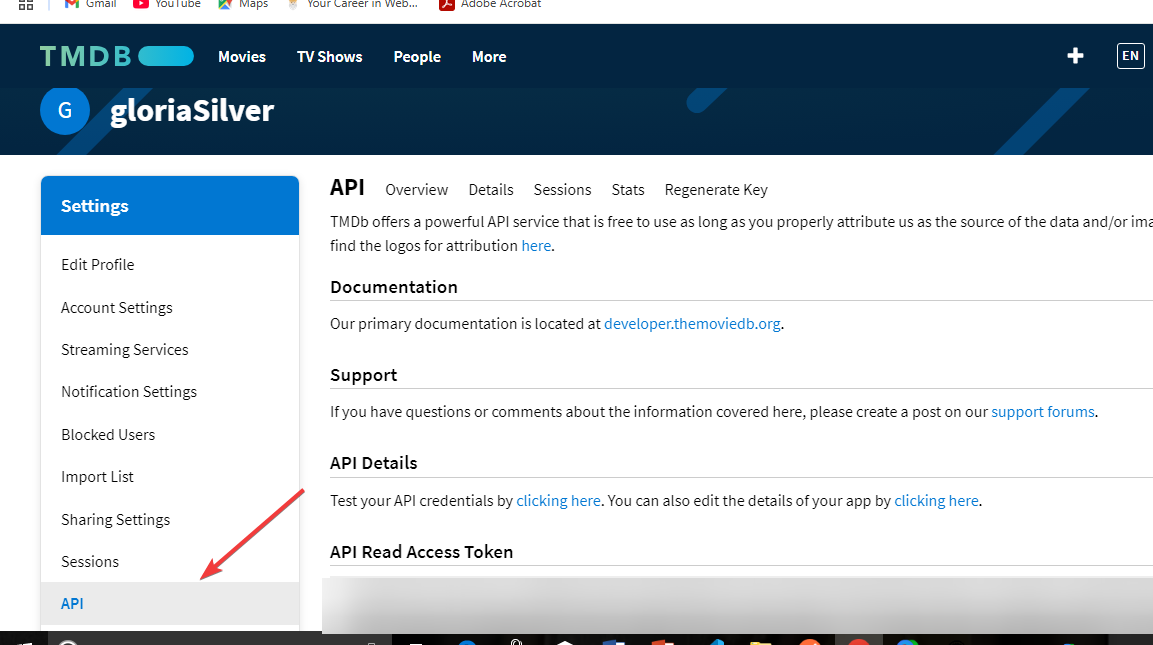
Scroll down and get your API keys in the ‘API Keys’ section.
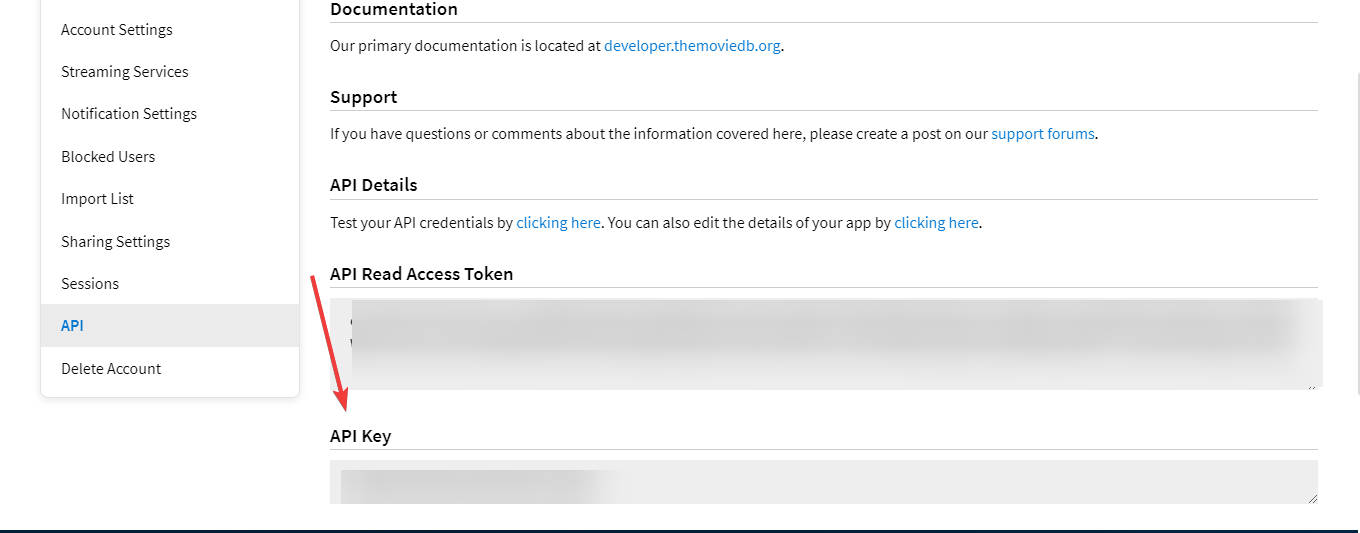
After you have gotten your`API Key`, set your`Authorization-header` as `API Key`.
Enter your`API Key` In the value section.
Your API key contains sensitive information; therefore, you must keep it secured
## [](https://starlight.mintlify.app/api-reference/authentication#how-to-use-bearer-token)
## How To Use Bearer Token
To use the bearer token to authenticate your request, you need to get your access token.
Follow these steps to get an access token:
Scroll to your account dashboard.
Scroll through the ‘Settings’ section at the left side of the page and click ‘API’.
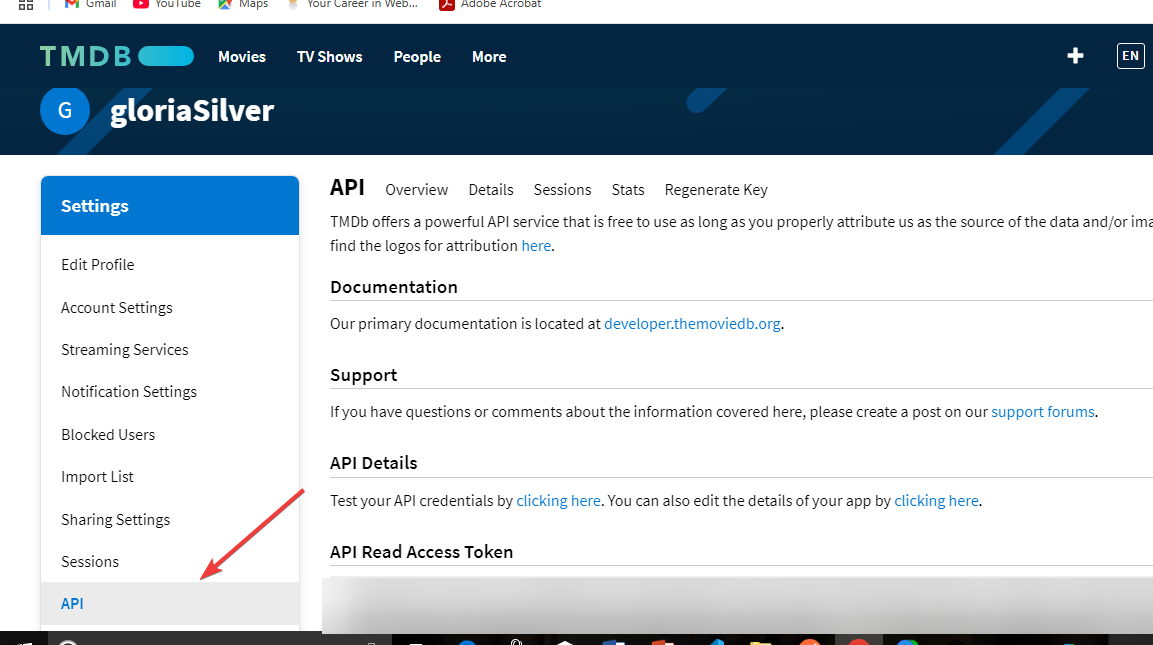
Scroll down and get your Access token in the ‘API Read Access Token’ section.
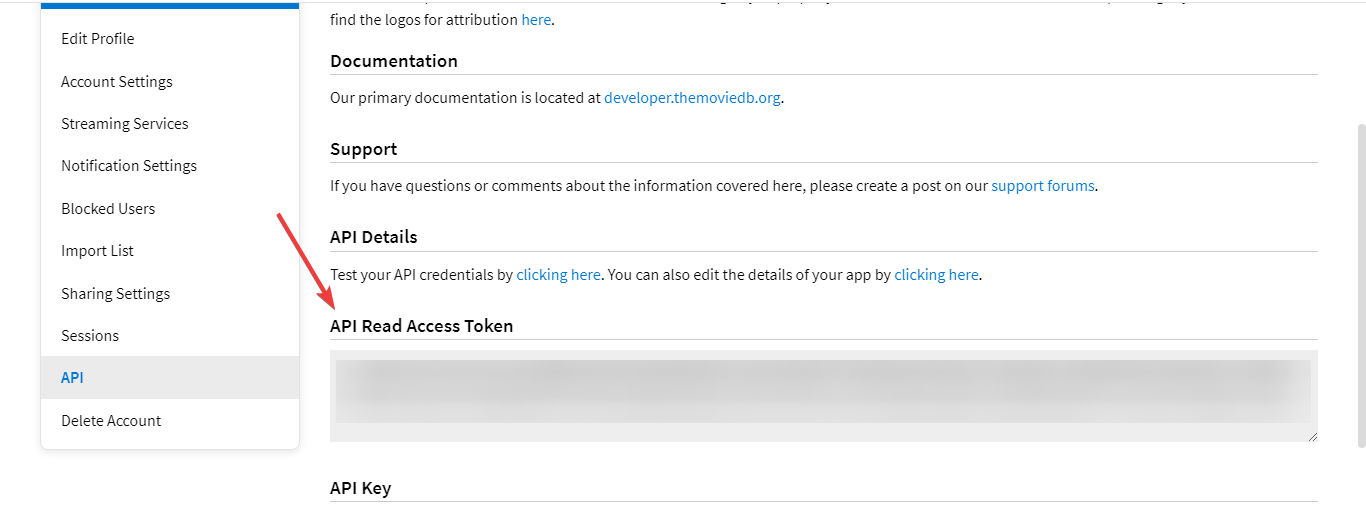
After you have gotten your `Access-token`, set your`Authorization-header` as `Bearer Token`.
Enter your `Access Token`in the value section.
Your Access token contains sensitive information; therefore, you must keep it secured.
Things you need to know:
* You can’t access the API registration page with a mobile device. You can only access the page using a desktop computer and browser.
* Before you can be issued an API key, you need to accept our terms of use. You can read that [here](https://www.themoviedb.org/api-terms-of-use).